![Flat-logo-timber_green (1).png]](https://help.hococo.io/hs-fs/hubfs/Flat-logo-timber_green%20(1).png?height=40&name=Flat-logo-timber_green%20(1).png)
User access is managed through roles, teams, and permissions.
In this guide, we'll explain how they work and how you can customize access to suit your staff members' needs.
What are roles, teams, and permissions?
User permissions in Hococo are built around three key concepts:
- Permissions: Determine what a user can see and do. For example, whether they can view, create, edit, or delete tickets.
- Roles: A collection of permissions assigned to a specific type of user, such as a property manager.
- Teams: Groups of staff members who share specific roles and permissions. Teams also determine which projects, unit groups, and units staff members can access.
In short, permissions determine what a staff member can do, while team access determines where they can do it.
Example
A property manager has permission to view and edit tickets.
If the property manager's team only has access to two specific properties, they will only be able to manage tickets for those properties, rather than all properties in the company.
What types of permissions are available?
Most features in Hococo have four types of permissions:
| Permission | What does it mean? |
|---|---|
| View | The user can view the feature and its content. |
| Create | The user can create new content. |
| Update | The user can edit existing content. |
| Delete | The user can delete content. |
Permissions can be customized for different areas of Hococo, such as tickets, shared facilities, events, documents, and staff management.
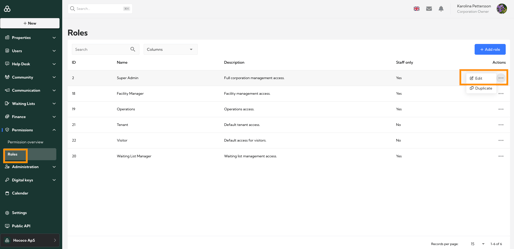
To edit permissions, click Permissions in the left-hand menu of Admin Hub. Then click the three dots next to the role you want to edit:
Example: Tickets
- View Tickets: Staff members can view and open tickets.
- Create Tickets: Staff members can create new tickets and write messages on them.
- Update Tickets: Staff members can change a ticket's status, priority, and assignee.
- Delete Tickets: Staff members can delete messages on tickets.
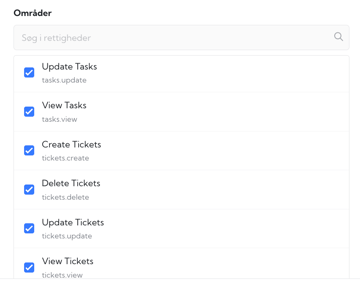
Please note that the exact functionality of each permission may vary depending on the feature it applies to.
What roles are available in Hococo?
When you start using Hococo, six default roles are automatically available.
| Role | Who is it intended for? |
|---|---|
| Super Admin | Administrators who need full access to all available features, projects, and settings, including internal administration such as staff management, finances, and permission settings. |
| Facility Manager | Property managers and staff responsible for property operations and shared facilities. |
| Operations | Staff members responsible for daily operations, resident communication, and ticket management. |
| Waiting List Manager | Staff members responsible for waiting lists and letting processes. |
| Tenant | Residents who use the Resident App. |
| Visitor | Guests or other users who are not registered as residents of a unit. |
Below is an overview of which Admin Hub areas the different staff roles have access to by default:
| Feature | Super Admin | Facility Manager | Operations | Waiting List Manager |
|---|---|---|---|---|
| Properties | ✓ | ✓ | ✓ | ✓ |
| Users | ✓ | ✓ | ✓ | ✓ |
| Help Desk | ✓ | ✓ | ✓ | ✓ |
| Channels | ✓ | — | — | — |
| Communication | ✓ | ✓ | ✓ | — |
| Waiting List | ✓ | ✓ | — | ✓ |
| Finance | ✓ | — | — | — |
| Permissions | ✓ | — | — | — |
| Administration | ✓ | — | — | — |
| Digital Keys | ✓ | — | — | — |
| Calendar | ✓ | ✓ | ✓ | ✓ |
✓ = The role has access to this area. — = The role does not have access to this area by default.
Each role comes with a predefined set of permissions suited to its purpose.
You can customize most roles to match your organization's needs. You can also duplicate an existing role or create a completely new one.
The exception is the Super Admin role, which includes all permissions your company can assign and cannot be edited.
How do teams work?
Teams make it easier to manage access for multiple staff members at once.
Instead of assigning the same permissions to each staff member individually, you can create a team and assign one or more roles to it.
All staff members in the team will then receive the permissions associated with those roles.
You can also choose which projects, unit groups, and units the team should have access to.
Example
Imagine you have an operations team that only works with properties A and B.
You can create a team called "Operations Team" and:
- Add the relevant staff members.
- Assign the Facility Manager role.
- Choose to give the team access only to properties A and B.
The staff members will then have the relevant permissions, but their access will be limited to the selected properties.
You can find Teams in Admin Hub under Users in the left-hand menu.
Can a staff member belong to multiple teams?
Yes! A staff member can be part of multiple teams.
If a staff member belongs to several teams, the permissions from all those teams are combined.
This means they will have access to all the features and areas granted through their combined roles and team memberships.
You can also assign a role directly to an individual staff member without adding them to a team.
How do I customize user permissions?
You can manage roles and teams directly in Admin Hub.
You can also enable or disable individual permissions for a specific team without changing the original role.
This is particularly useful if one team needs slightly different permissions from other teams that share the same role.
What happens if I change a staff member's permissions?
A staff member's overall access depends on:
- The roles assigned to them directly.
- The roles and permissions they receive through their teams.
- The projects, unit groups, and units their teams have access to.
If you remove a permission from one role, the staff member may still have that permission through another role or team.
Tip: If a staff member has access to more features than expected, it's a good idea to check all their assigned roles and team memberships.
Good to know
Can all staff members change user permissions?
No. Staff members need the relevant permissions to view, create, or edit roles and teams.
Can I create my own roles?
Yes. You can create new roles from scratch or duplicate an existing role and customize it to suit your needs.
Can I restrict a staff member's access to specific properties?
Yes. By using teams, you can control which projects, unit groups, and units a staff member has access to.
Do permissions also apply to residents?
Yes. Residents' access to features in the Resident App is also controlled by permissions. However, the same permission may provide different functionality for residents and staff members.
Why can't I see a specific feature even though I have been given permission?
Some features require multiple permissions or are only available if they have been enabled for your company.
For example, accessing the Unified Inbox requires the View Unified Inbox permission, even if other inbox permissions are enabled.
Need help?
If you're unsure which roles or permissions are best suited to your staff members, you're always welcome to contact our support team at support@hococo.io.
We're happy to help you find the setup that works best for your organization! 😊